Comsol Multiphysics
Summary
Source: https://www.comsol.com/
License: commercial product. licensed for academic use only
Path: /software/comsol
Module: maxwell comsol
Licensing: concurrent
License server: zitlic03.desy.de default port 1718. Only accessible from within the DESY network.
You can model and simulate any physics-based system using software from COMSOL®. COMSOL Multiphysics® includes the COMSOL Desktop® graphical user interface (GUI) and a set of predefined user interfaces with associated modeling tools, referred to as physics interfaces, for modeling common applications. A suite of add-on products expands this multiphysics simulation platform for modeling specific application areas as well as interfacing with third-party software and their capabilities (from: https://www.comsol.com/products).
Using COMSOL Multiphysics
Use modules to setup the environment
module load maxwell comsol
comsol
Check https://www.comsol.de/support/knowledgebase/933/ for information about rendering. In general, accessing maxwell via FastX will give a considerably better experience than using ssh for remote access.
Note: COMSOL stores large amount of files and data in /tmp and the home-directory. Neither have sufficient space. It is hence advisable to redirect COMSOL temporary data. see Comsol storage locations for additional options.
Troubleshooting
comsol tends to freeze when running remotely via ssh. That happens occasionally also on display nodes. In that case start comsol selecting software rendering:
module load maxwell comsol
comsol -3drend sw
Getting support
For basic support contact uco@desy.de. For in-depth technical questions the COMSOL technical support is available. Asking for support at COMSOL you will need the license number (check "Licensed products" under "Options"). COMSOL comes with an extensive Help-System. Some of the manuals can also be found in the COMSOL installation folder, on maxwell have a look at /software/comsol/6.2/multiphysics/doc/pdf/.
Installing COMSOL Multiphysics manually
The installation procedure is very similar for Linux, Mac OSX and Windows. All information needed can be found under COMSOL Downloads & Licenses (or in /afs/desy.desy/products/source/comsol/). The folder is only accessible with a DESY username and password. There are two types for Installer:
- InstallerLite: Downloads comsol from the vendor. It does not require a comsol account.
- Installer: the full installer for offline installation
We recommend InstallerLite. You will need to specify the license manager during installation: zitlic03.desy.de Port 1718, see below for a screenshot.
Note: do NOT install the license manager, see below.
Installing COMSOL Multiphysics on Linux
Fetch and installer from https://it.desy.de/services/soft/downloads/comsol/ or directly from comsol or directly from AFS (if you have an AFS client installed):
mkdir -p COMSOL
tar xf /afs/desy.de/products/source/comsol/6.2/COMSOL62_lnx.tar.gz -C COMSOL  # example for v6.2.
cd COMSOL
./setup  # See snapshots below
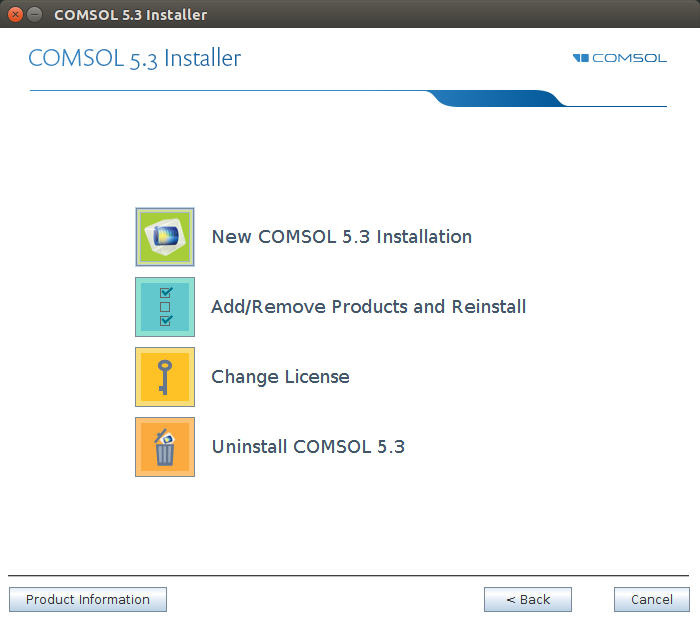
- Select New COMSOL installation
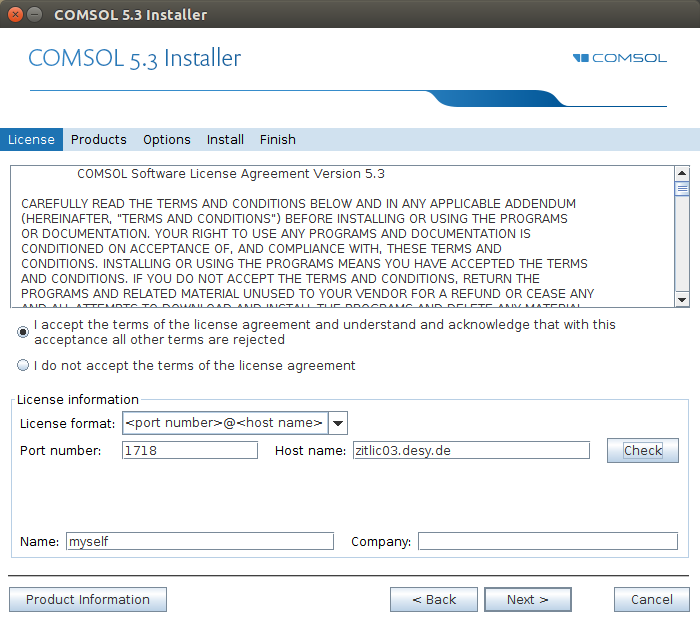
- Set the license server
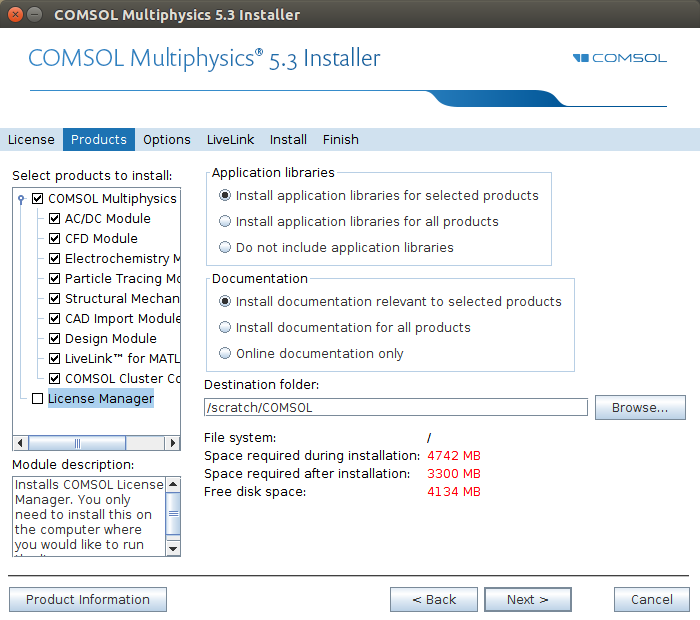
- Deselect the License Manager!
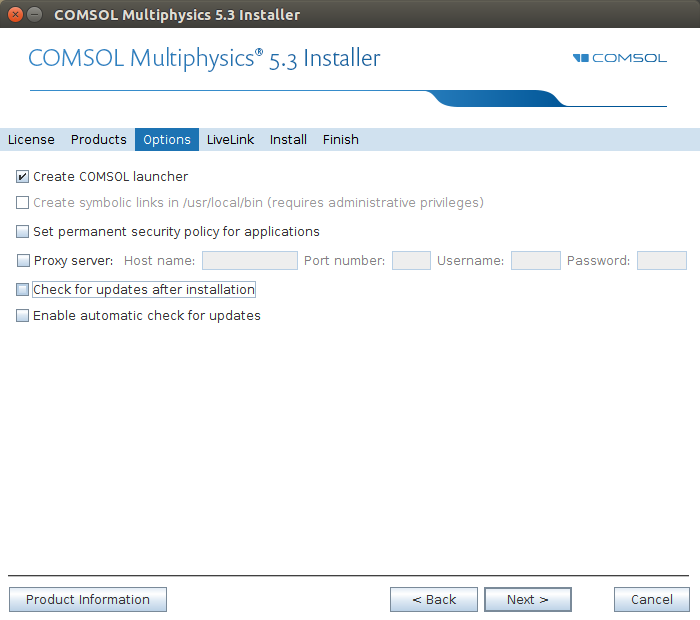
- Uncheck updates
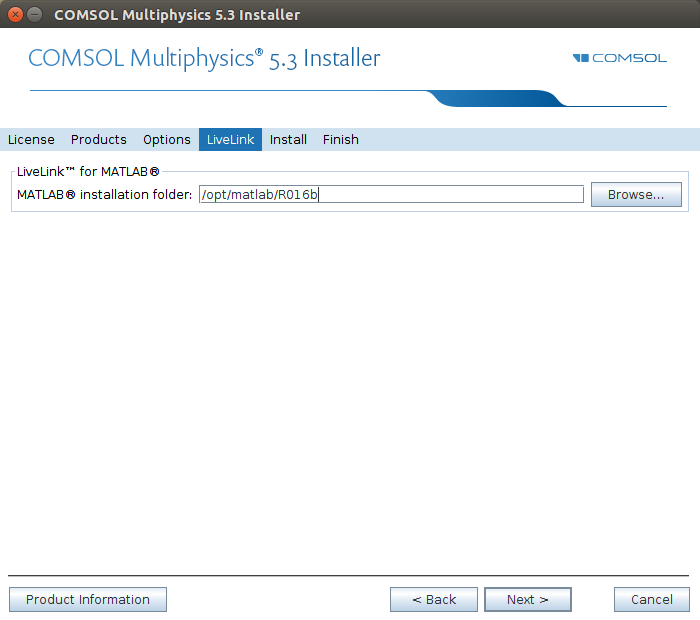
- Select a matlab installation if you have one
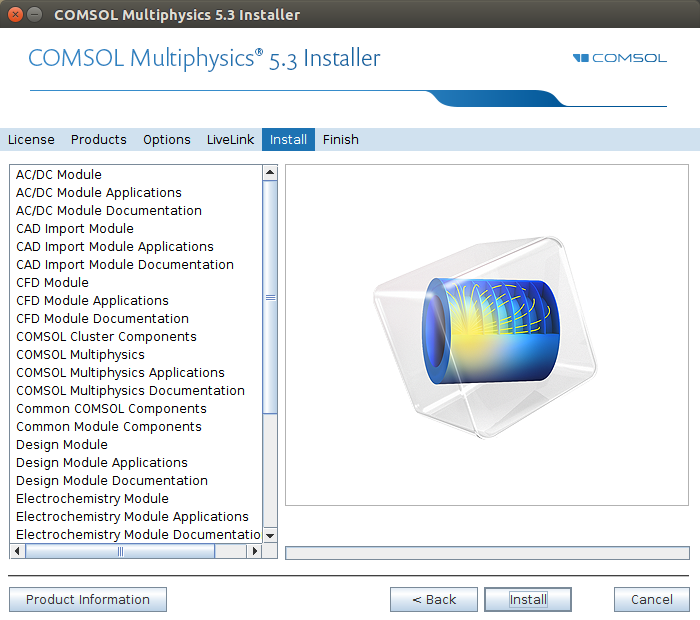
- Run the installer