ansys lumerical
Summary
Source: http://www.ansys.com/products
License: commercial product for academic use only. Also check https://www.ansys.com/footer/terms-and-conditions for details.
Path: /software/lumerical
Documentation: http://www.ansys.com/product
Downloads: see downloads page
License information
export ANSYSLI_SERVERS=2325@zitlic10.desy.de
export ANSYSLMD_LICENSE_FILE=1055@zitlic10.desy.de
The list of licensed modules (and your current license usage) can be found using the command
my-licenses -p ansys | egrep 'lum|Overview'
Using Lumerical on Maxwell
Basic lumerical installations are available on maxwell at /software/lumerical/\<version>. You can load a module or launch applications directly from /software/lumerical/\<version>/bin/, e.g. /software/lumerical/2024/bin/mode-solutions.
module load maxwell lumerical/2024 # please use 2024 or newer (once available)
lumerical                          # starts the launcher
The lumerical module also creates a file ~/.config/Lumerical/License.ini if it doesn't exist. If lumerical nevertheless asks for a license server configuration, set "Ansys (Standard)" with zitlic10.desy.de as license server using the default port (or 1055). However, it won't replace an existing license-file. Please open lumerical once and verify that your license setup looks like this:
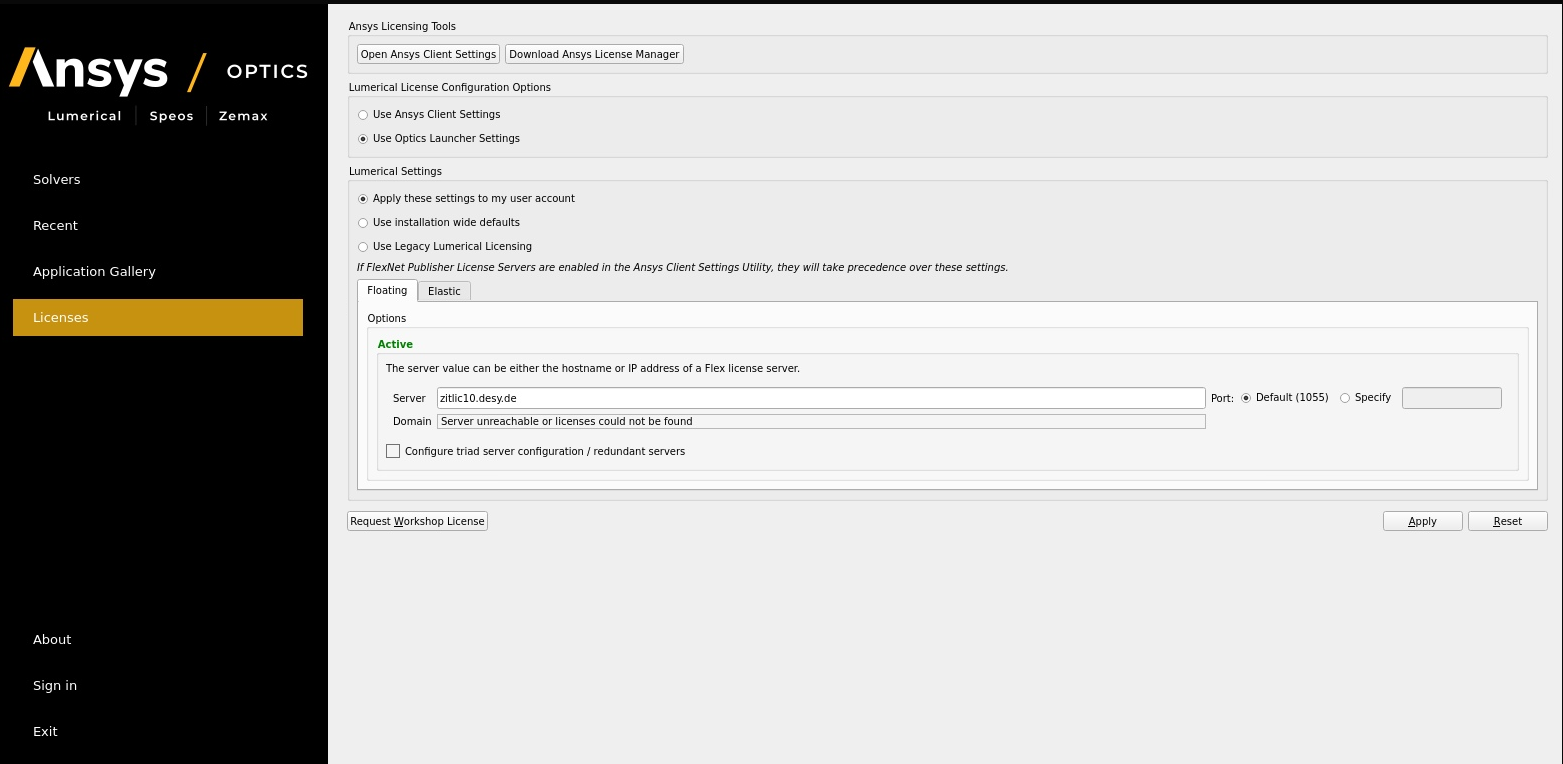
Your license config file ~/.config/Lumerical/License.ini should look like this:
[license]
ansysserver\host=1055@zitlic10.desy.de
default=user
domain=1
Note: when using Lumerical 2023 use domain=2.
Lumerical in batch
Running a lumerical batch-job on maxwell is basically very simple. A sample script could look like this:
#!/bin/bash
#SBATCH --partition=short
#SBATCH --time=0-02:00
#SBATCH --job-name=lumerical
#SBATCH --nodes=4
unset LD_PRELOAD
source /etc/profile.d/modules.sh

module load maxwell lumerical openmpi/4.1.8
# just silence some messages:
export ANSYSLIC_DIR=/software/ansys/24.2/shared_files/licensing

`which mpiexec` -n 8 `which fdtd-engine-ompi-lcl` -t 16 $PWD/fdtd_grating_trial.fsp
submit the script from the folder containing the lumerical input-file (fdtd_grating_trial.fsp in the sample) with
sbatch lumerical.sh
Submitting batch jobs from the gui
It's possible to run lumerical batch jobs directly from the GUI. Lets assume you have a lumerical script file named waveguid.lsf. Launch the GUI with
module load maxwell lumerical/2024
fdtd-solutions waveguide.lsf
Save the simulation once to generate a .fsp file.
Create a file named ~/.config/Lumerical/job_scheduler_input.json:
{
    "user_name":"your user name!",
    "use_ssh":1,
    "use_scp":0,
    "cluster_cwd":"",
    "master_node_ip":"max-display.desy.de",
    "ssh_key":"~/.ssh/your private key",
    "path_translation": ["",""]
}
you should set a proper user name and path to your private ssh key. Some of the options might actually not be needed, I haven't tried. The setup seems to run smoothly when running on max-display in a FastX session. When submitting from a host outside the maxwell cluster you will need to set "path_translation" to match the project-path on your local machine to the project-path on the cluster.
See Lumerical documentation for detailed instructions.
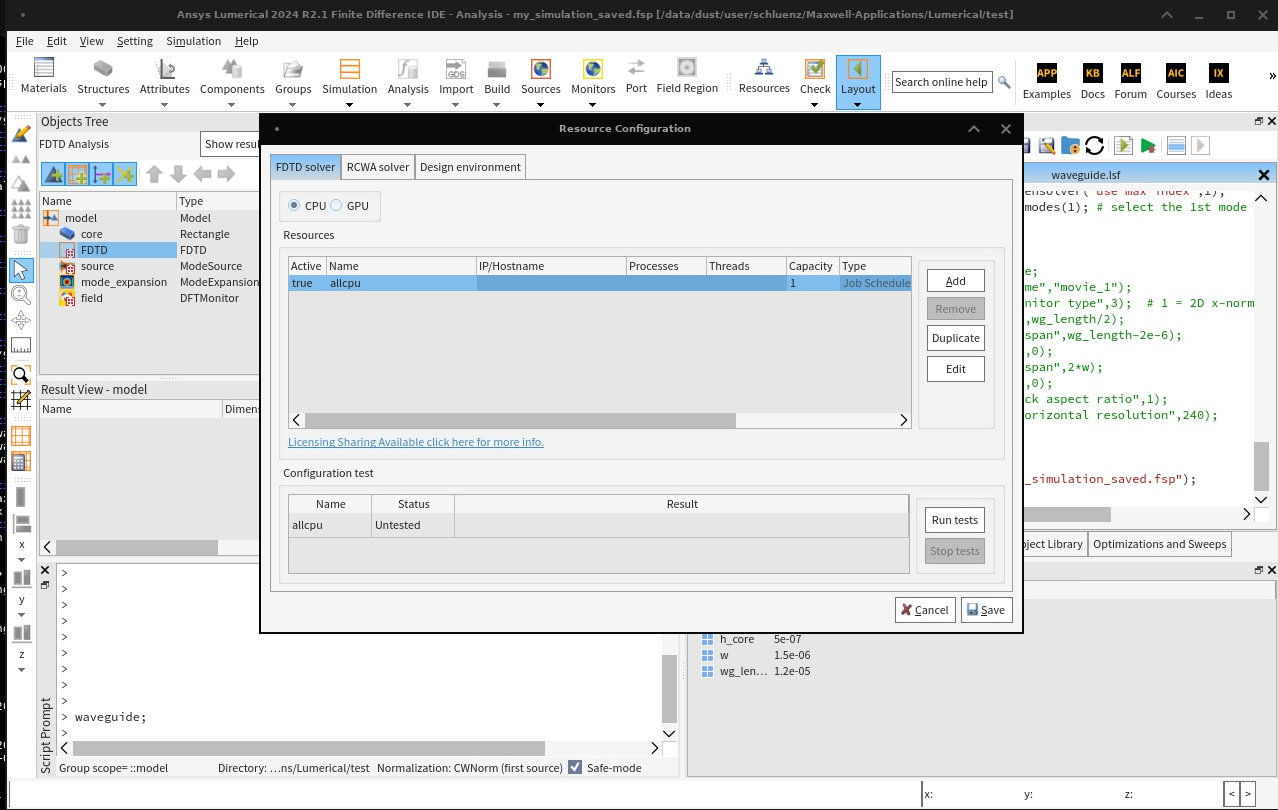
Configure your "compute resources":
you need to specify the parameters for batch submission and the actual batch script:
 | 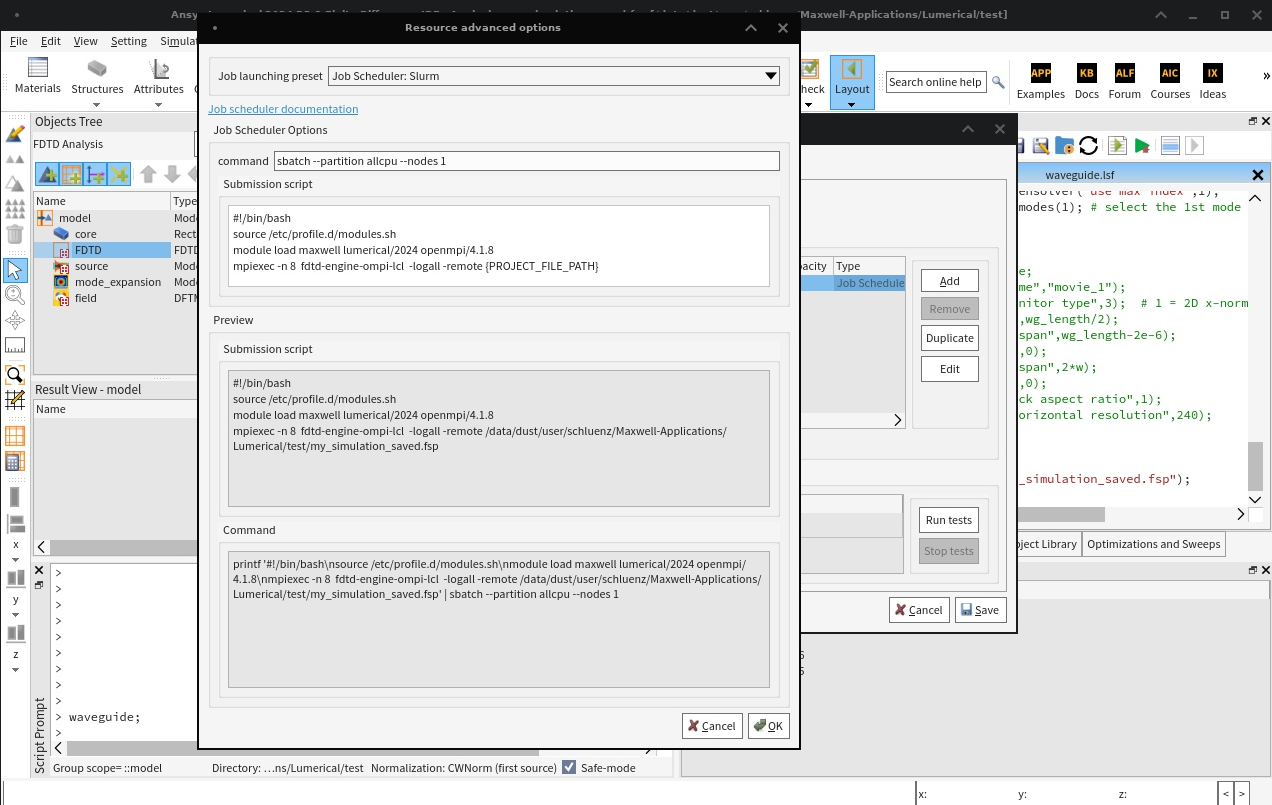 |
The batch script template looks like this
#!/bin/bash
source /etc/profile.d/modules.sh
module load maxwell lumerical/2024 openmpi/4.1.8
mpiexec -n 8  fdtd-engine-ompi-lcl  -logall -remote {PROJECT_FILE_PATH}
{PROJECT_FILE_PATH} will be replaced by Lumerical with the name of the fsp-file.
Run the simulation:
Running the simulation will now submit a batch job:
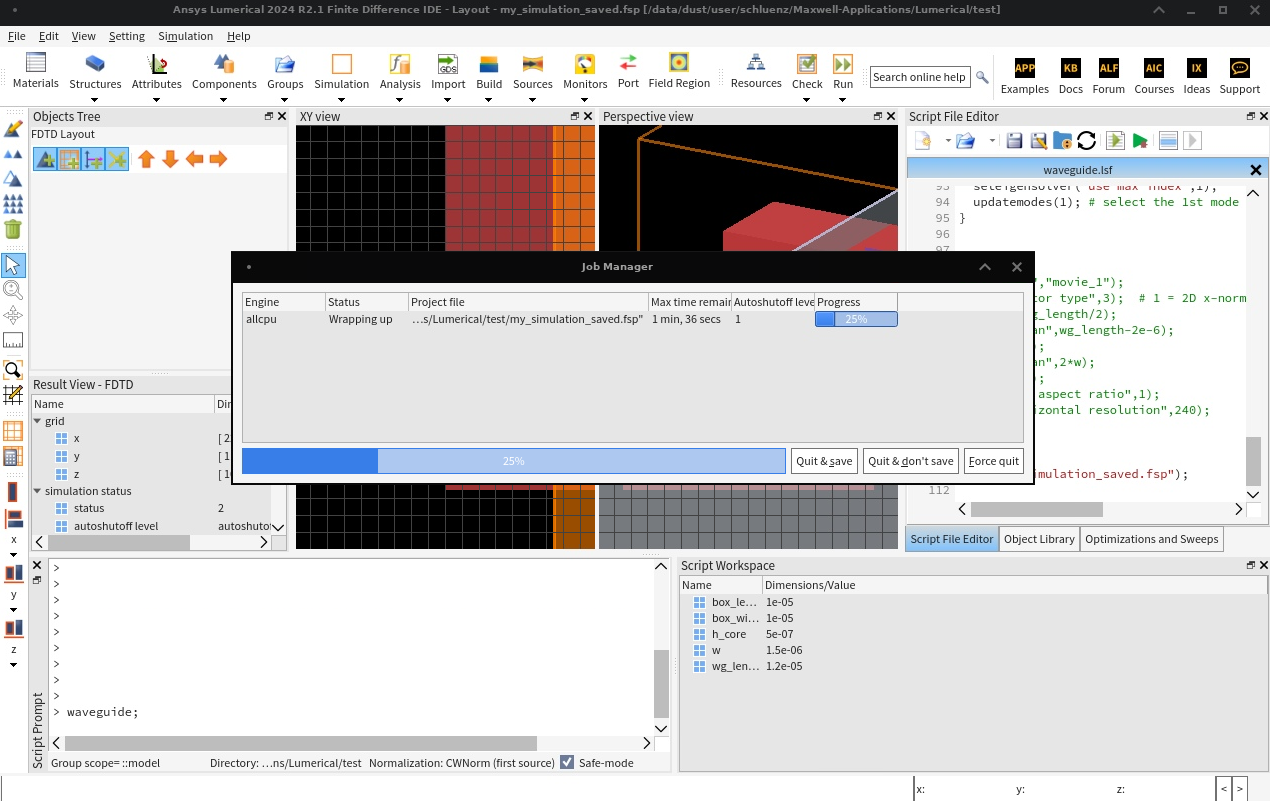
The slurm log-file will reside in your home-directory.